Job Tiles & Rosters
WAE (Work Available Everywhere) is a staffing start-up that helps connect employees sign up for work at several different companies. The Enterprise App is only available for employers to post jobs.
Overview
Employers post their staffing needs for each department as separate jobs. For example they could need five workers for packaging and two workers for forklift drivers from 8:00 am to 05:00 pm. A total of seven workers would report to work at 8:00 am and would need to check in for their specific department to ensure they are paid the correct rate.
The Issue
Each shift is displayed as a row similar to an excel spreadsheet. The team lead that is checking workers in for each shift on any given day would need to first search for the date, then open each shift and look for the workers name on the list. Once the worker is found on the list the team lead would write their name down on a piece of paper and the time. If their name was not found on the roster of that job, the team lead would close that job and open the next job for that day and time and look for their name on that roster. This would repeat for all of the jobs until the name was either found or they checked all the jobs. If the name isn’t found on any of the rosters, the worker is not allowed to work that day. Once all the workers that reported to work that day are either recorded on the paper or turned away the paper is put in a pile for the manager to enter in the timekeeping system.
I went to our employers to watch the check-in process. I found that the team lead was often printing a list of workers on the rosters instead of looking through the “live” rosters during check-in. This presented a few additional problems. First, if a worker’s name isn’t on the roster they are not allowed to enter the building and work that day. There were times workers cancelled their shifts and someone filled in for them at the last minute. When I asked I found the rosters were being printed at the beginning of the day. Therefore, if the B-shift had a change it was not reflected in the printed roster and people that were signed up were being turned away. Second, the paper recording of names and times was often left on the managers desk until the end of the week when they sat down to enter payroll. If a worker left early or stayed late to work extra, that information was not being recorded. This caused timecard disputes and a lot of back and forth from the WAE payroll team to the employers. The longer this went on the more frustration on everyone’s part, we needed to come up with a solution and fast.
Design Process
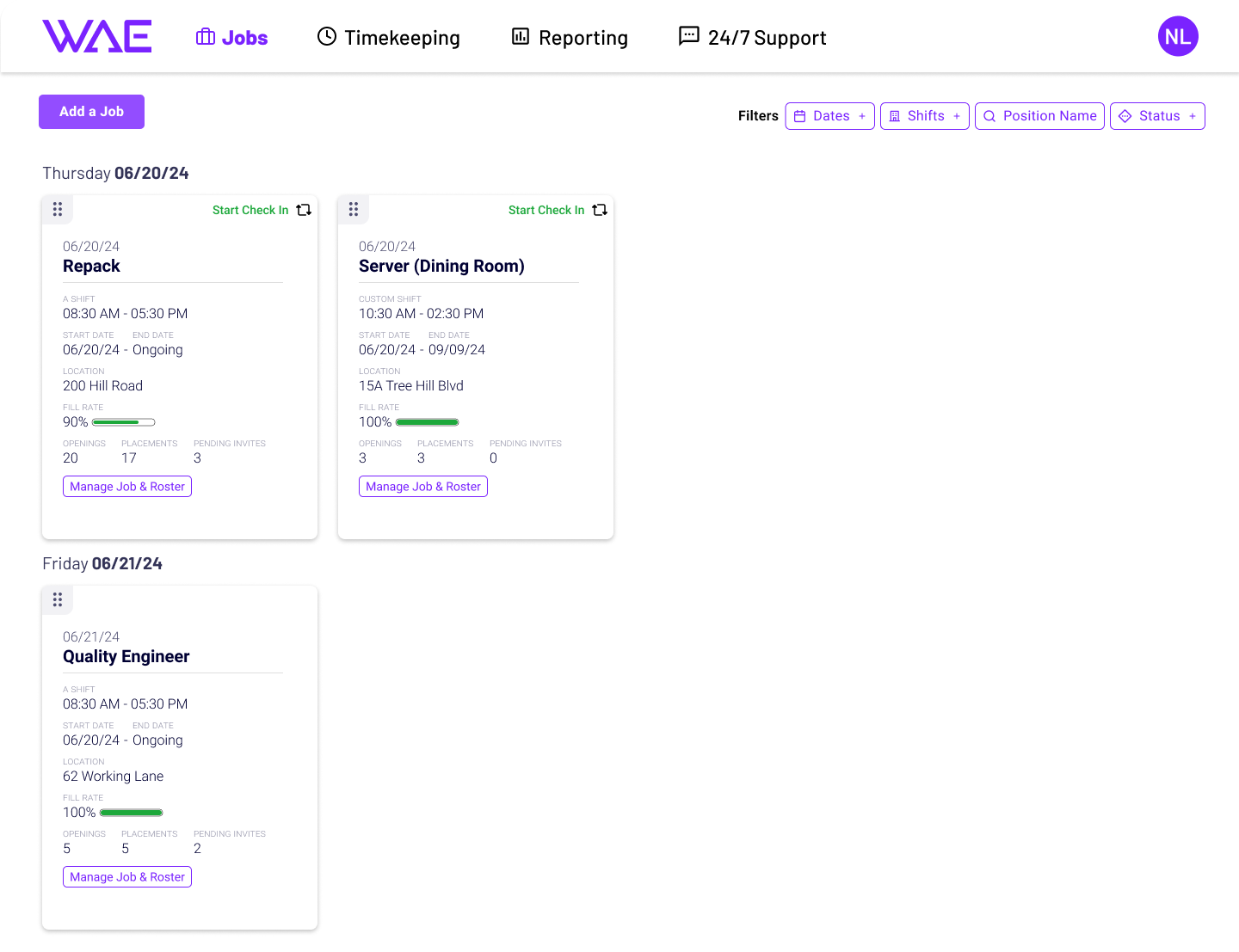
The first goal was to get the employers to stop printing the rosters. My solution-Job Tiles! Replacing the excel like spreadsheet I made each job a tile. On the front is the job information, the job name, time, dates, and other relevant information. Then the tile flips and you can see the roster for that job. This designs allows for the employer to flip all the jobs during check-in and see all the rosters at the same time. Eliminating the need to click into each job, look for the name and then close out and go into the next job. This new designs also always open to “today” and the tiles can be rearranged by dragging and dropping allowing team leads to group their jobs during check-in. This new functionality was met with overwhelming success with our clients, saving time and frustration.
Now, to stop printing! I added a checkbox to each workers name to allow the employers to mark workers “present” in the system. The magic-it also displayed the time the employee clocked-in for their shift. No more writing times and names down on paper. If a worker didn’t show up, they could be marked as a no show too.
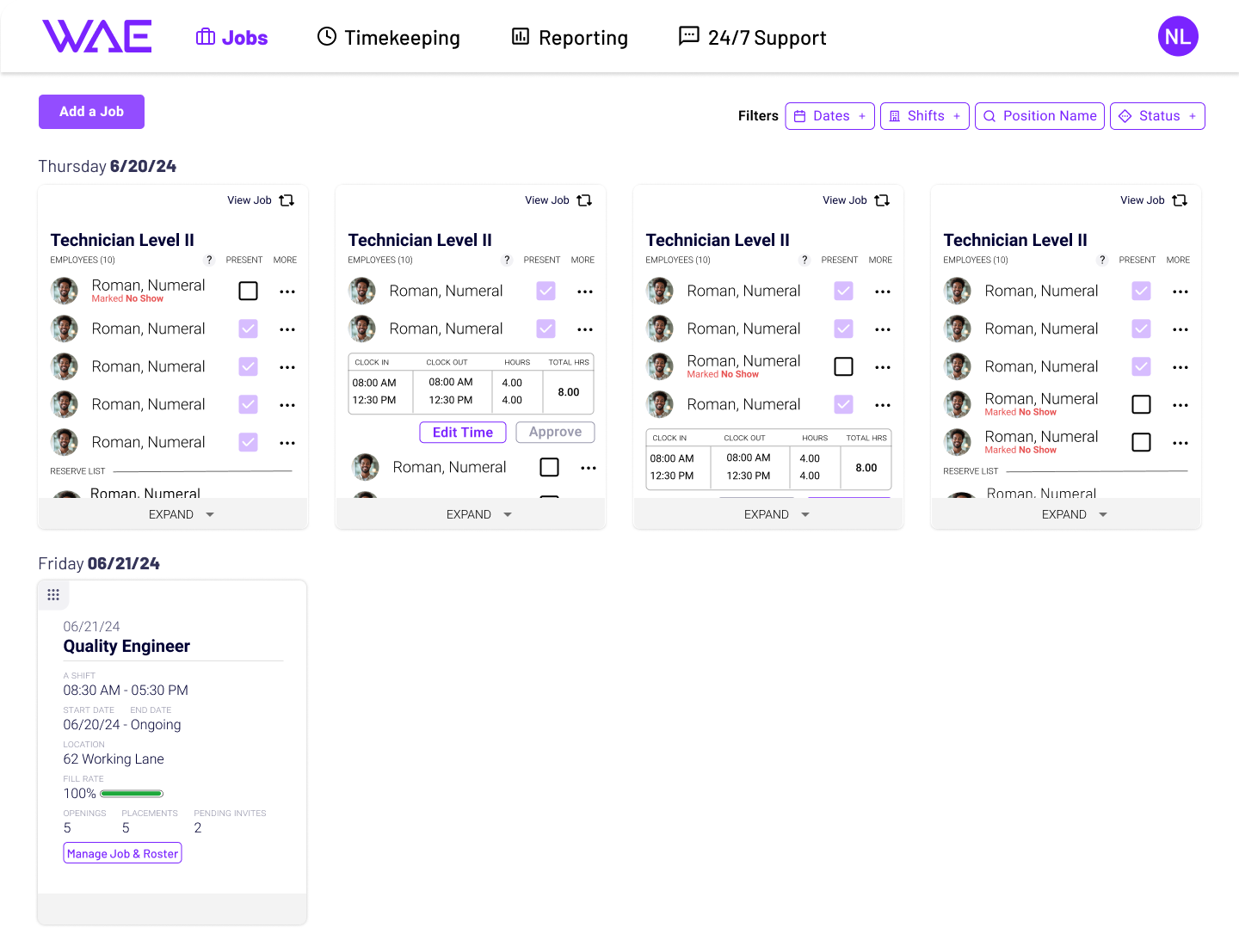
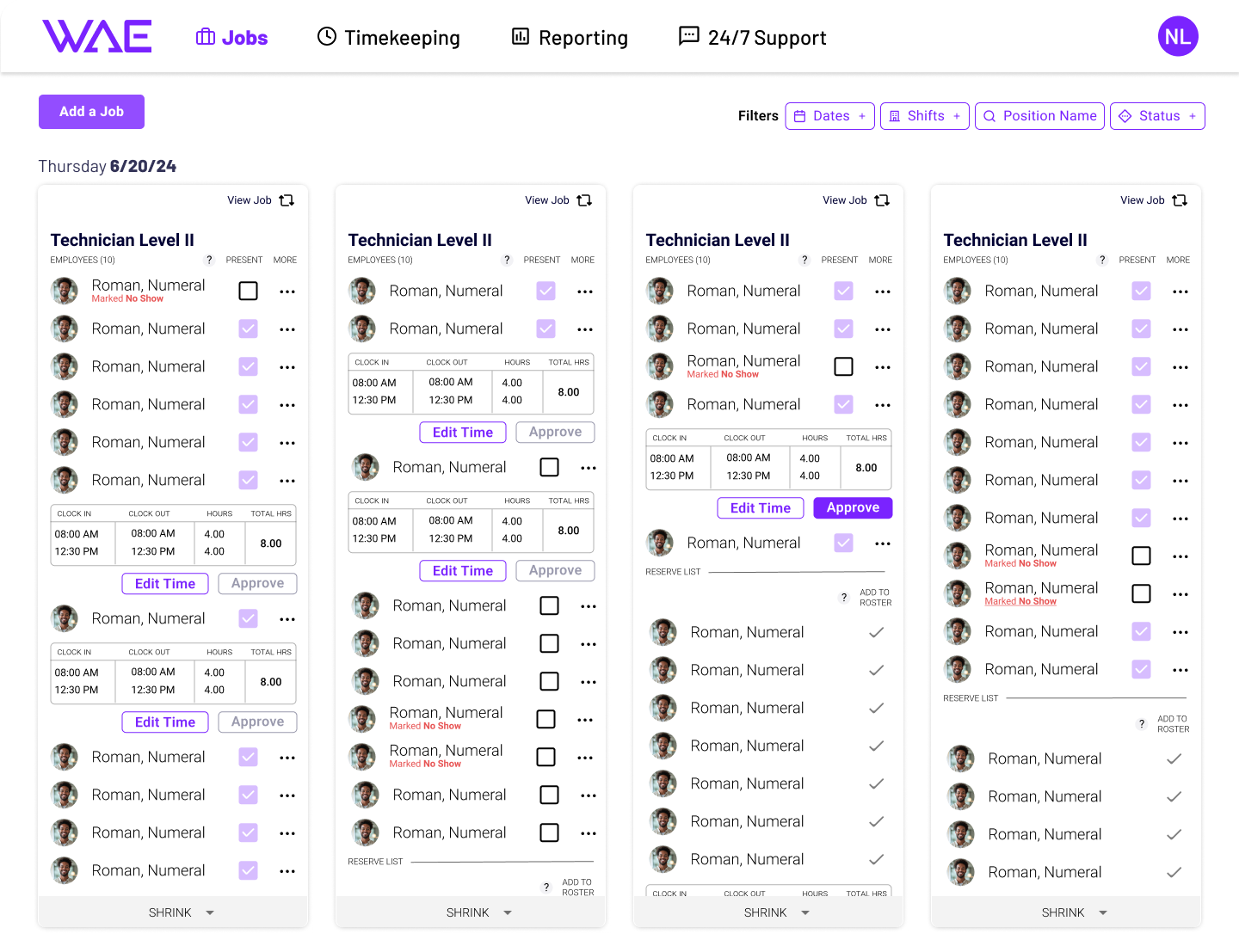
Previously, employers were waiting until the end of the week to enter payroll. As mentioned above this caused issues with accurate time being reported. Now that we had employers using the system to mark attendance I added their timecard information for each shift under their name. They can view and edit the time on the timecard easily. At the end of each shift the Approve button for each worker is clicked to approve the time each day instead of waiting until the end of the week.
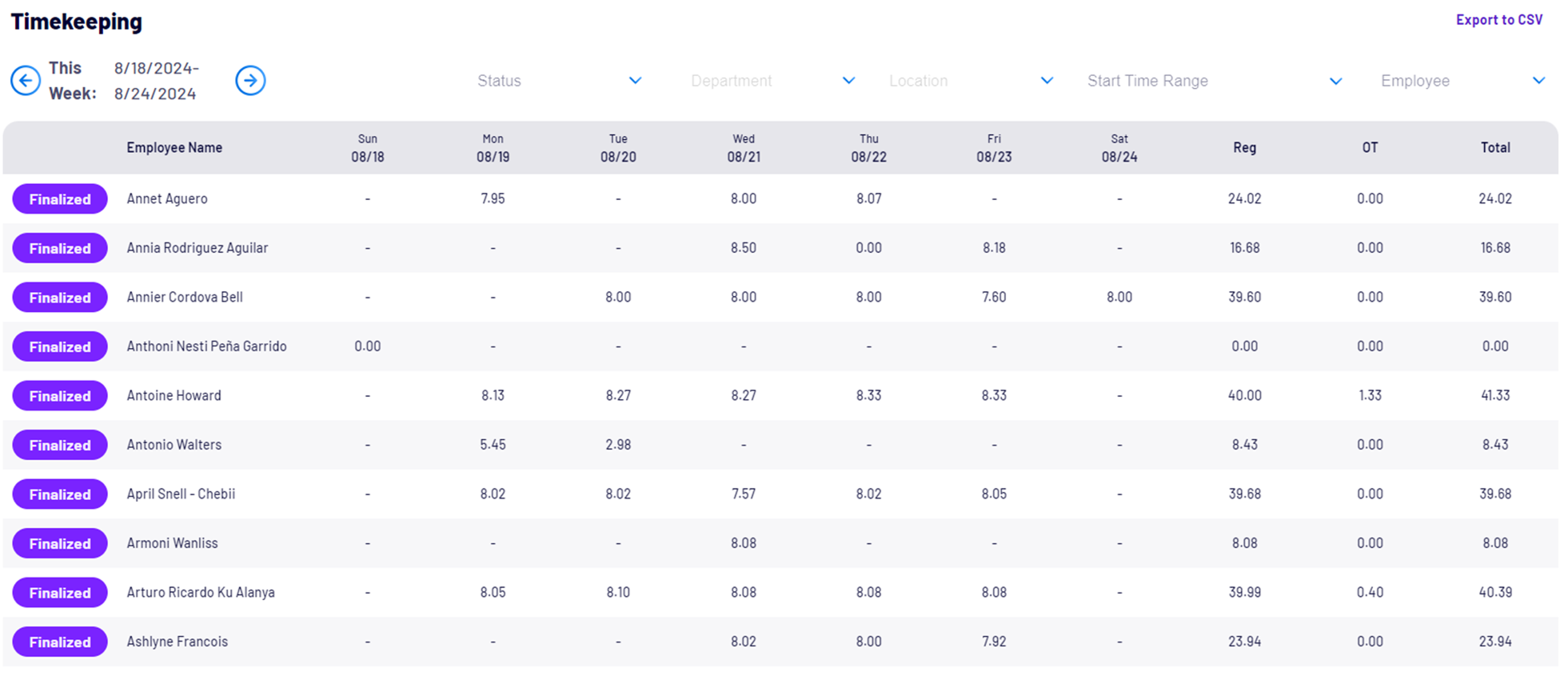
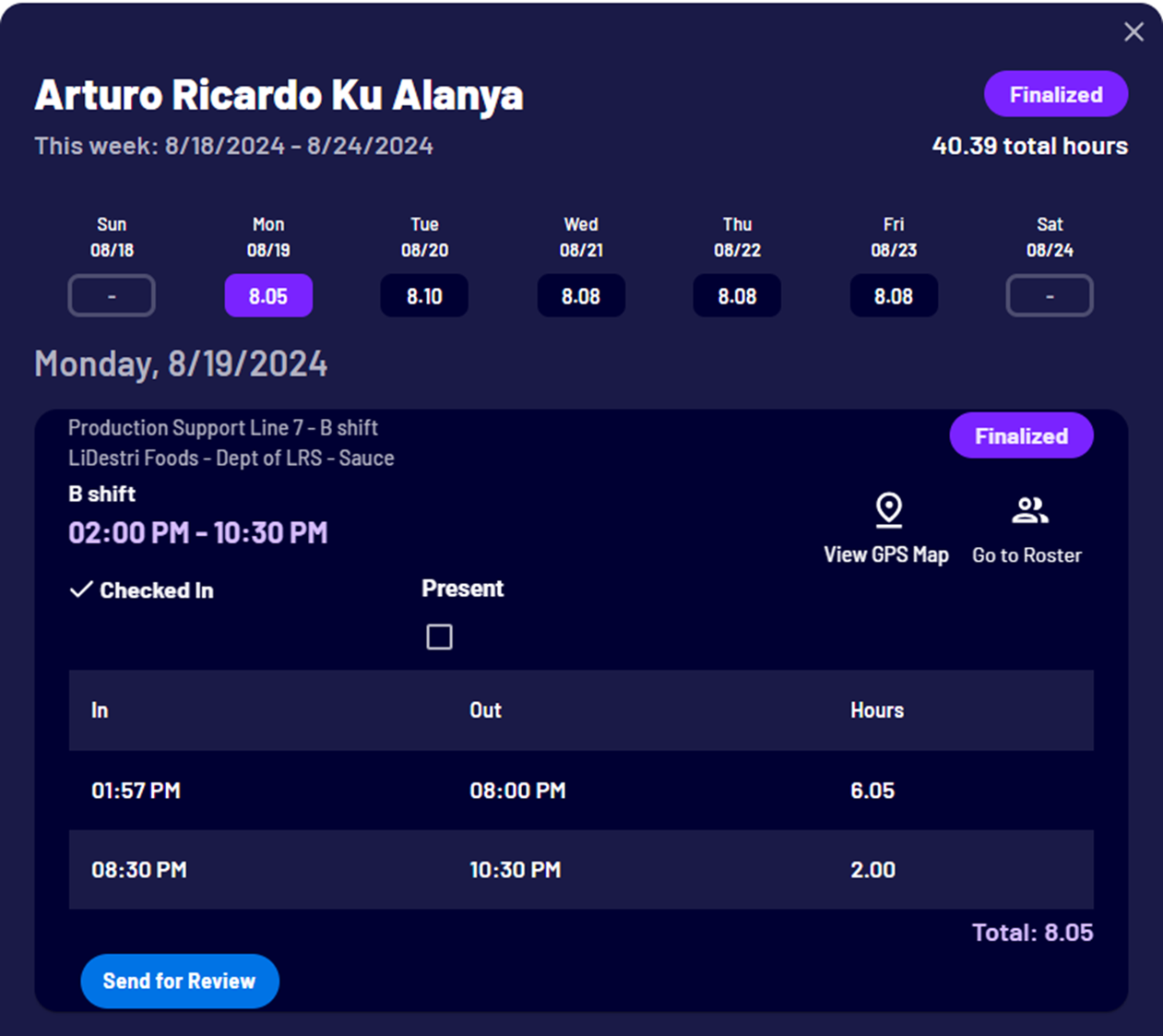
This not only encouraged employers to submit timecards daily but it drastically reduced time disputes and pay delays for workers. In the earlier system, the employer would have to go to timekeeping, search for each worker, and then enter the time in for each day using a series of drop downs (example below).
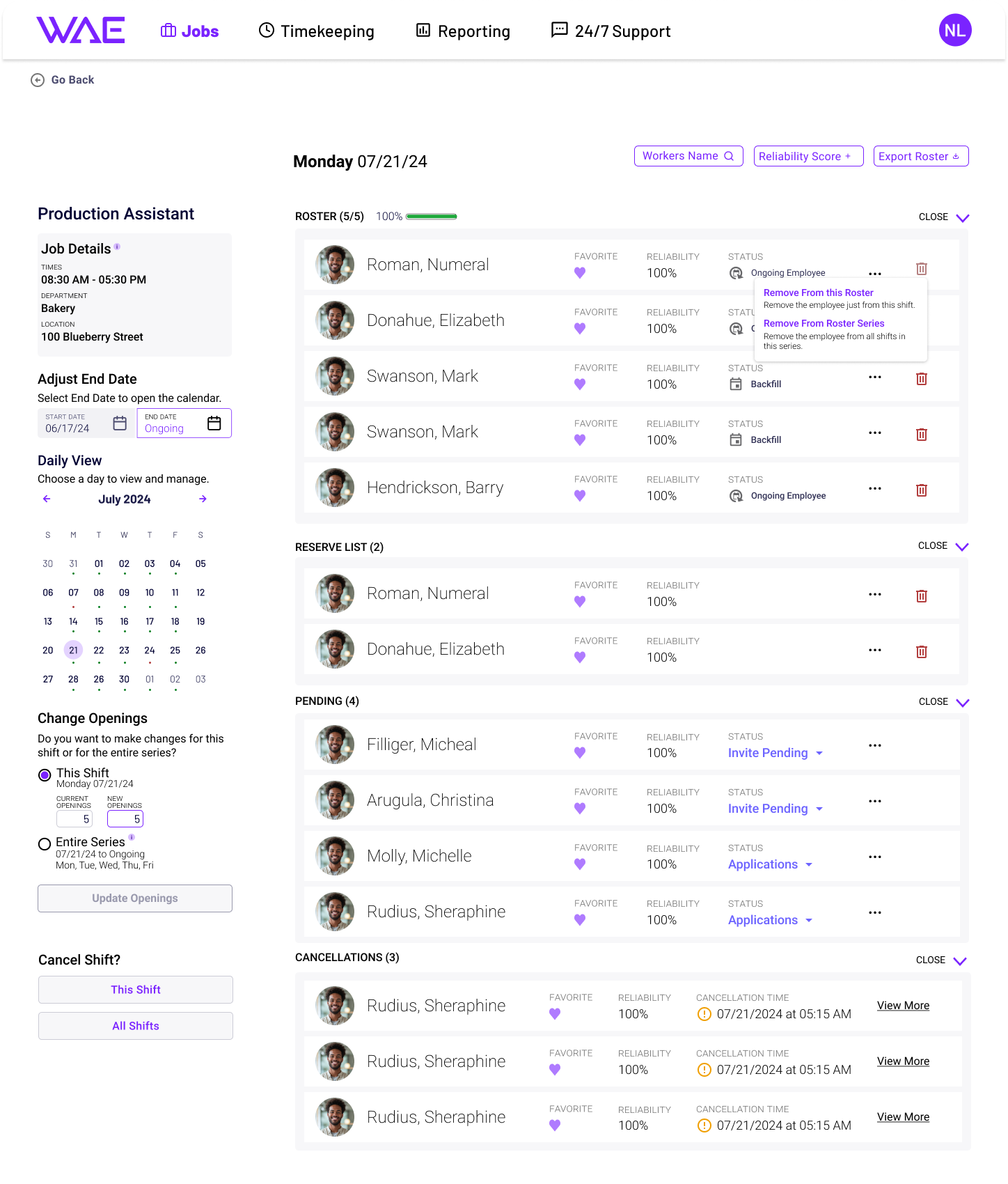
Roster management was a fast follow to this project. I identified a lack of clarity for the employers when looking at their rosters and ensuring that their rosters were 100% full. At WAE we always aimed to fill a shift to 100%. However, there were times our fill rates were closer to 50%. We needed to find a way to backfill employees that cancelled shifts or were signing up for shifts and not showing up.
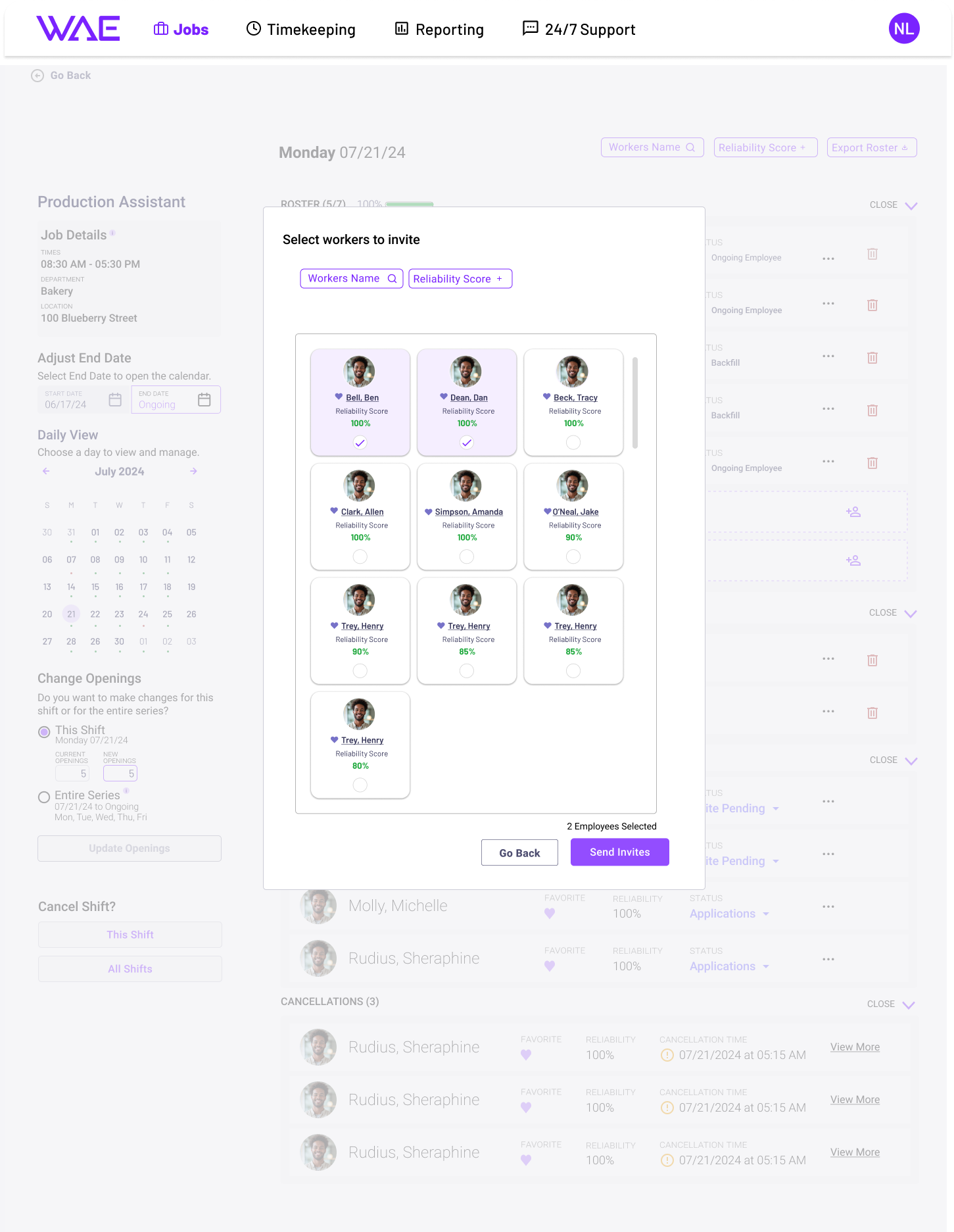
I created a new roster management system to give employers an overview of workers signed up for work. From here workers could be invited to shifts, removed, favorited, or In addition, we developed a Reliability Score based on a workers attendance, shift cancellation rate, sign up rate, and other information. This score was used to propose workers to add or remove depending on what is needed.